You found a prompt you love. The lighting is perfect, the mood is right, but you want a different person, a different place, or a different outfit. Rewriting the whole prompt yourself is slow, and it's easy to break the parts that made it work.
That's exactly what the Make it yours section on Imagetheus is for. It turns a finished prompt into a template with blanks, so you change only the parts you care about and keep everything else that makes the image look good.
What a prompt template is
A template is a normal prompt where some words have been swapped for labelled blanks. For example:
Portrait of [person] sitting by a rain-streaked window in a quiet [place], soft grey daylight, wearing a [outfit], calm and thoughtful mood, shallow depth of field, cinematic film still
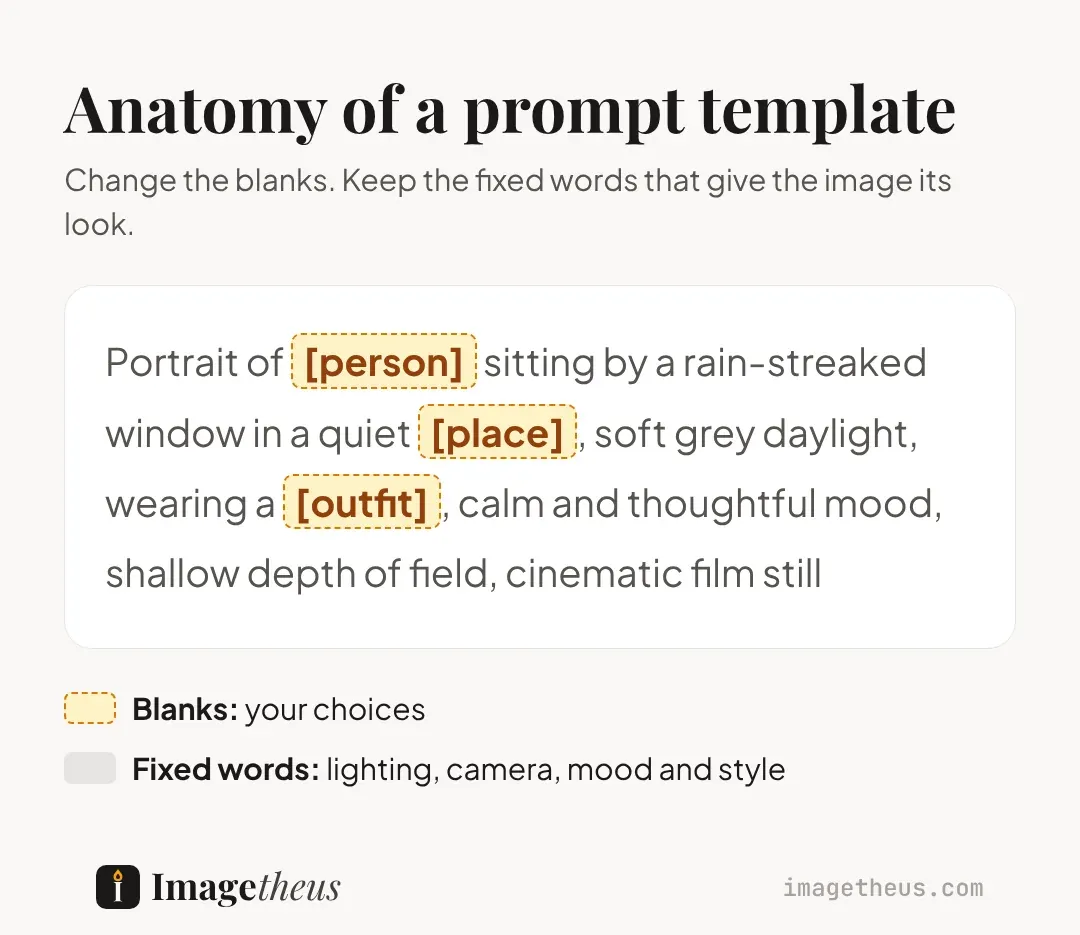
The lighting, camera, and mood words stay fixed. Those are the parts that took the most testing to get right. The blanks are the parts that are safe to change.
How to use Make it yours, step by step
- Open a prompt page that shows the Make it yours tab next to Original.
- Switch to Make it yours. You'll see one box for each blank in the prompt.
- Type your own words into the boxes. The example under each box shows the kind of answer that works best.
- Watch the preview update as you type. Your words appear inside the full prompt straight away.
- Press Copy my prompt and paste it into your AI image tool.
On a phone, Make it yours opens as a sheet from the bottom of the screen. The copy button stays above the keyboard, and the site remembers what you typed if you close the sheet and open it again.
What to put in the blanks
The blanks work best when your answer is about as detailed as the rest of the prompt. A one-word answer in a long, detailed prompt often looks out of place. Read the words around each blank too: if the prompt already says "wearing a", type "mustard wool coat", not "a mustard wool coat", so the sentence still reads naturally.
People
Instead of "man", try "an older man with a grey beard and round glasses". Age, hair and one small detail give the AI something to work with.
Places
Instead of "café", try "small corner café with steamed-up windows". A place with a little texture tells the AI what to put in the background.
Outfits and objects
Name the material and colour: "mustard wool coat", "cracked leather notebook". Materials change how the light falls on things.
Three quick remix ideas
- Same scene, new season: change the place to a snowy version of itself and keep the lighting words.
- Same person, new job: swap the outfit and one prop (a chef's apron and a copper pan, a painter's smock and a brush).
- Same mood, new subject: replace a person with an animal or an object. A quiet portrait prompt can become a beautiful still life.
Tips for the best results
- Change one or two blanks first. If the result drifts too far from the original, you'll know which change caused it.
- Keep the style words. Words like "cinematic film still" or "soft window light" are what give the image its look.
- Don't fight the setting. A beach outfit in a snowy street can work, but the AI may bend one of them to make sense.
- Generate a few versions. AI tools give different results each time, so try two or three before changing the words again.
A note on real people
Templates are for your own ideas. Avoid naming real people, especially private individuals, and don't use other people's photos without their permission. If you want to use your own face, look for prompts in our Reimagine Yourself category, which are written for that.
Try it now
Browse the gallery, open any prompt with a Make it yours tab, and change one blank. It's the fastest way to learn how small word changes shape an AI image.

